Currencies
Currencies
The Currencies tab in the Stack Console allows administrators to configure and manage all currency-related settings used across the platform. This includes defining currency symbols, setting thresholds, uploading icons, and establishing default top-up amounts. By properly setting up a currency, you ensure seamless transactions and consistent user experience across both personal and organizational accounts.
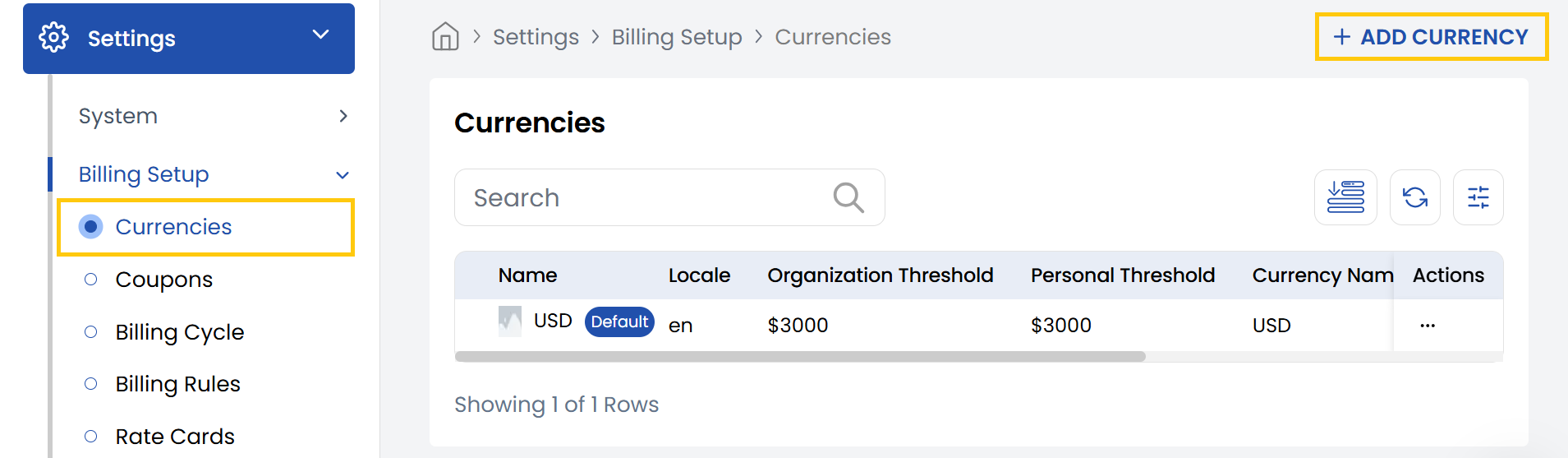
- From the left-hand side of the page under the Billing Setup section, click on Currencies to view the list of configurations for currencies.
- To create a new currencies configuration, click on Add Currency.
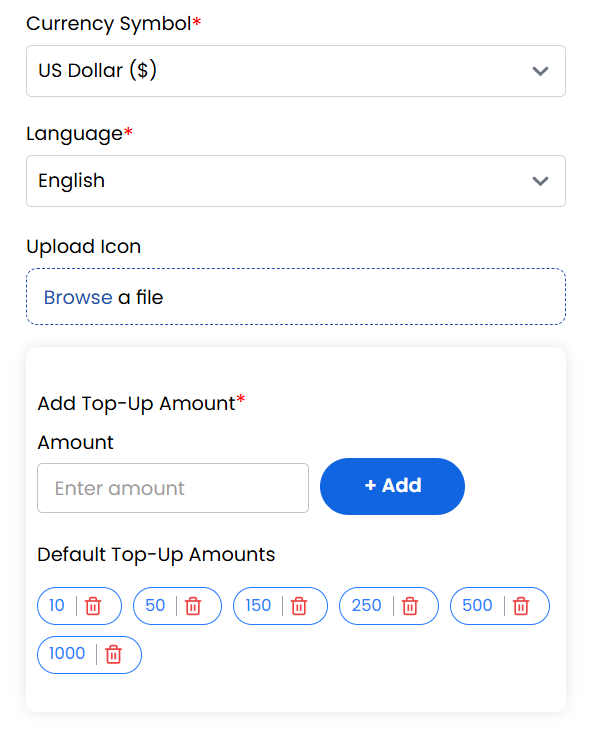
- Currency Symbol: Enter the symbol for the currency (e.g., $ for US Dollar).
- Language: Select the primary language used for this currency (e.g., English).
- Upload Icon: Click to upload a custom icon for the currency.
- Add Top-Up Amounts: Enter the desired top-up value in amount field. Click the Add button to include it in the list.
- Organization Threshold: Input the organizational spending or balance threshold.
- Personal Threshold: Input the personal spending or balance threshold.
- Currency Name: Enter the official currency name.
- Fraction Name: Specify the fractional unit.
- Decimal Number: Indicate the number of digits after the decimal point (typically 2 for most currencies).
- Status: Select Active/Inactive to make the currency available or not to use.
- Mark as Default: Check this box if this should be the primary/default currency used in the system.
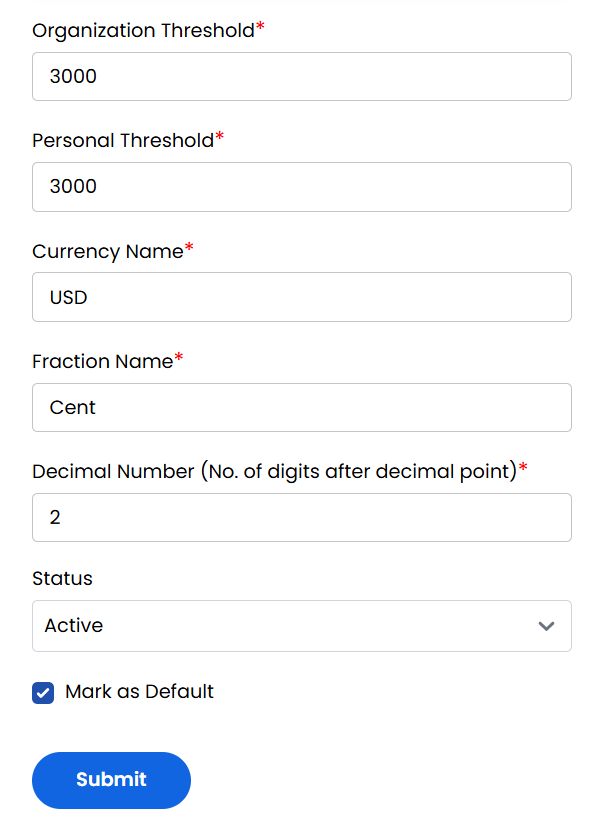
Review all inputs for accuracy. Click Submit to save and activate the new currency configuration.
Conclusion
The Currencies section provides complete control over monetary configurations, ensuring accurate financial operations across the platform. For currency setup assistance, contact Stack Console support.